Listen To Course Instructions For Desktop Computers Using Edge
Here are step-by-step instructions for you to follow based on how you are accessing our courses.
To use Microsoft Edge browser on your computer
First, you can access your purchased courses through the My Courses tab inside of your account.
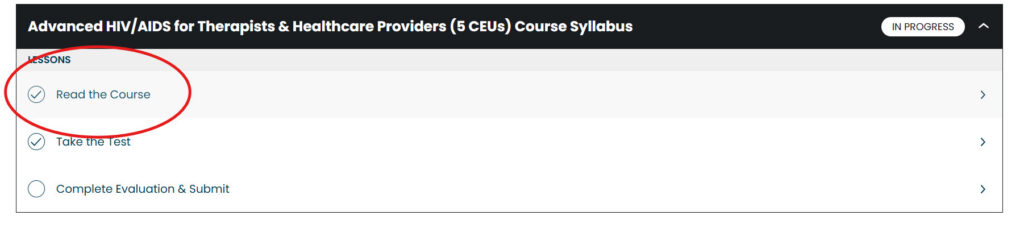
Click on the course you would like to access. You will be taken to the Overview page, where you can click on the first step of your course “Read the Course”.
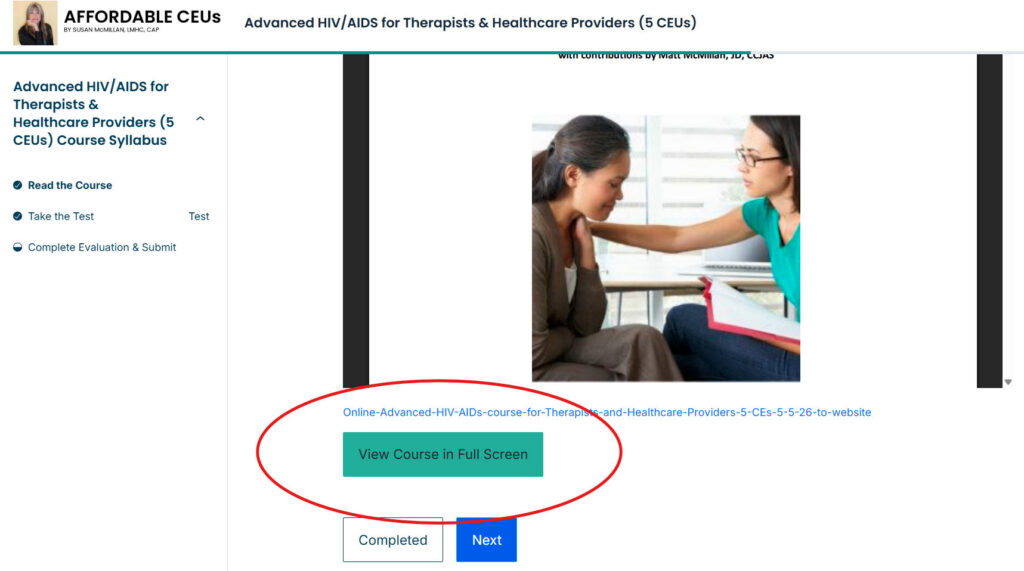
When viewing the course, if you scroll down the page, there is a button to “View The Course in Full Screen”. Click on that button to open up the course in a new tab (see image below).
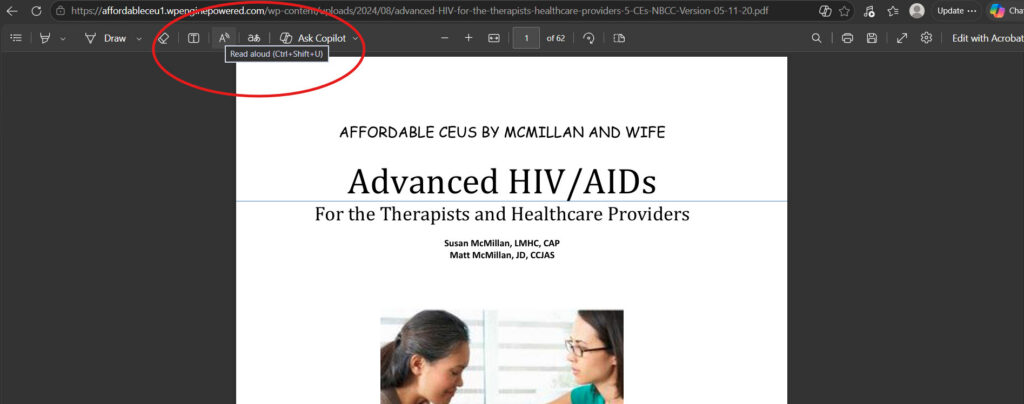
With the course in full screen, you should see some buttons across the top of the screen for various tools. Look for the one that looks like the letter “A” with some sound waves coming off of it. This is the button to have the course read aloud for you. Click on that button.